
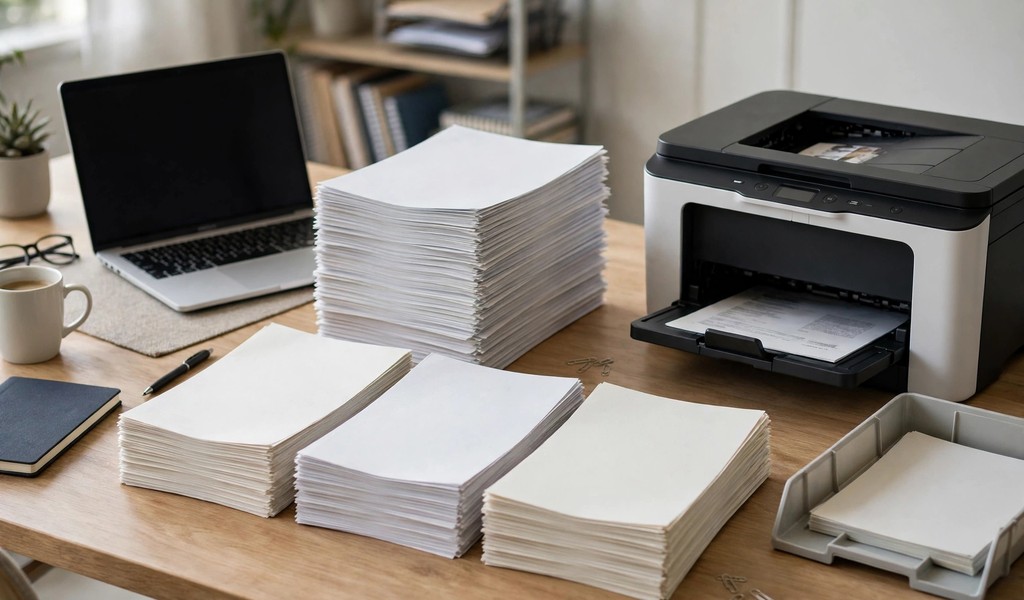
Collate means your printer arranges multipage copies into complete sets in order. Next, each set runs from page one through the final page before the next set starts. Uncollated printing groups identical pages together instead, so you must sort them by hand. Collated sets leave the printer ready to hand out immediately.
You usually meet this setting inside the print dialog beside the copy count. Meanwhile, most printers check the collate box by default for multipage documents. This guide explains both modes clearly and helps you pick the right one every time. Below, you will see exactly how each mode stacks pages.
How Collated Printing Works
In short, collated printing produces one complete document at a time in reading order. For example, three copies of a five-page report emerge as three full sets. Each set follows the same sequence, so readers receive pages one through five intact. Therefore, offices rely on this mode for reports, manuals, proposals, and meeting handouts.
How Uncollated Printing Works
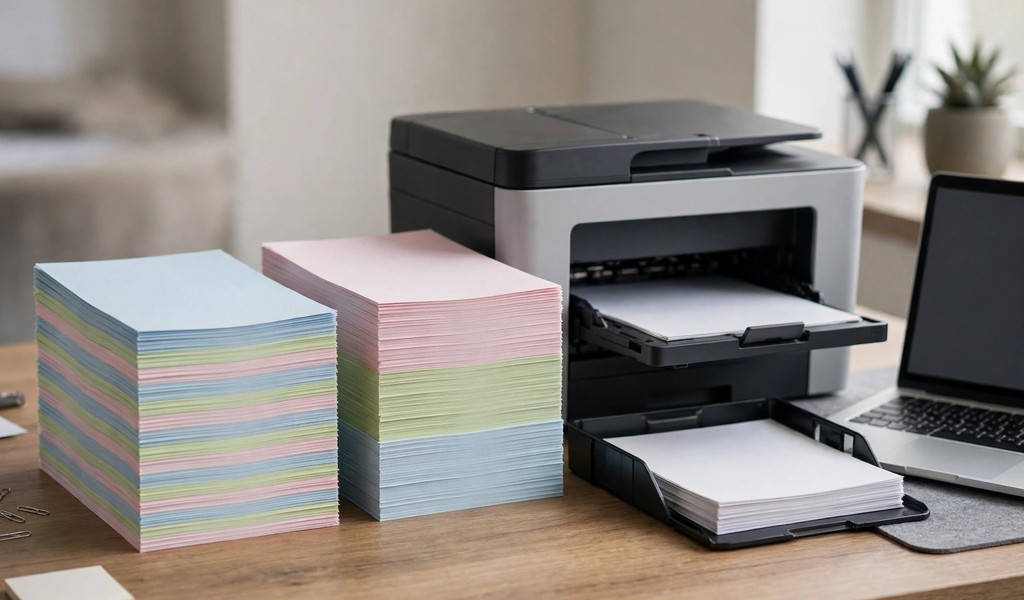
By contrast, uncollated printing groups every copy of each page into its own stack. Three copies of a five-page report produce five stacks with three sheets each. Then you must gather one sheet from every stack to build complete sets. In practice, this mode suits single-page flyers, forms, coupons, and worksheets perfectly.
Collated Versus Uncollated at a Glance
- Collated output: Each copy leaves the printer as a complete ordered set.
- Uncollated output: Identical pages stay together in separate page-number stacks.
- Page count: Both modes print the same total number of sheets.
- Cost: Neither mode changes paper or toner use for the same job.
- Speed: Uncollated runs sometimes finish slightly faster on older machines.
As a rule, choose collated output whenever recipients need complete documents right away. Pick uncollated output whenever you plan to distribute single pages separately. However, sorting time usually matters more than the tiny speed edge uncollated runs offer.
When to Turn Collate On

Turn collate on first for training manuals, employee handbooks, and board packets. Also use it for booklets, presentations, and multipage contracts you must staple. Then collated sets feed directly into staplers, binders, and booklet finishers without sorting.
When to Turn Collate Off
Switch collate off for bulk runs of one identical page. Flyers, posters, coupons, and single-page notices all work better uncollated. Separate stacks also help when different people handle different pages later.
How to Set Collate in the Print Dialog
- Dialog: Open the print dialog and find the copies section first.
- Checkbox: Check the collate box beside the copy count.
- Duplex: Enable double-sided printing separately if you need it.
- Test: Finally, print one test set and confirm the page order.
- Batch: Print the full batch only after the test set looks right.
Remember, collate and duplex control different things, so check both settings. On duplex jobs, collation keeps page two on the back of page one. Without collation, duplex jobs can pair identical pages front and back. The right printer also makes these settings easier to find. See how to choose the right printer for guidance on picking a model.
Fixing Common Collate Problems
Sometimes the print dialog grays out the collate option. One copy, one page, or an outdated driver usually causes this. First, increase the copy count and update the printer driver. Next, check advanced settings, since some drivers hide collation there.
Frequently Asked Questions
What is the difference between collated and uncollated printing?
Collated printing delivers complete ordered sets, while uncollated printing stacks identical pages together.
Does collated printing cost more than uncollated printing?
No, both modes print the same sheets, so paper and toner costs stay equal.
Can I collate a single-page document?
No, one page has no sequence to arrange, so the setting changes nothing.
Why is the collate option grayed out on my printer?
The option usually grays out for one copy, one page, or an unsupported driver.
Does collation work with double-sided printing?
Yes, collation pairs correctly with duplex printing on most modern printers.
Conclusion
Collate simply saves you from sorting pages by hand after every multipage job. Before your next multipage job, check the collate box carefully. Try one collated test set today and enjoy ready-to-share documents. Make collated printing your default habit for every multipage job.