
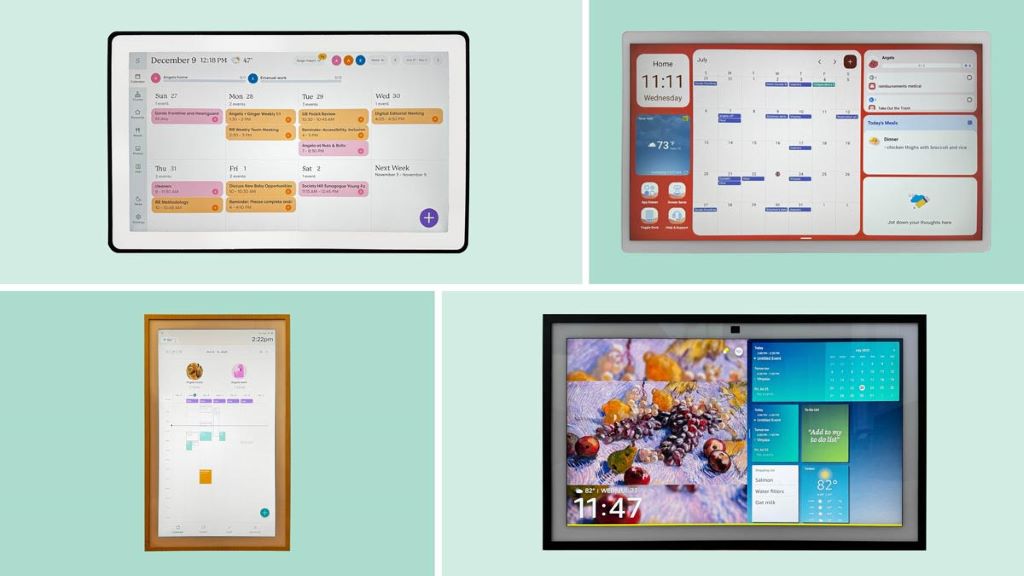
In a world filled with distractions and endless to-do lists, staying organized can feel like an uphill battle. I remember the days when my desk was covered in sticky notes, my phone buzzed with constant reminders, and I still missed deadlines. That chaos changed when I discovered the power of a large screen digital calendar. Suddenly, my schedule was visible, manageable, and—most importantly—impossible to ignore. A large screen digital calendar transforms how you plan, prioritize, and execute your tasks, turning overwhelm into order.
A digital calendar is more than just a tool for tracking dates. It’s a visual command center for your life and work. According to a study by Harvard Business Review, people who use digital planning tools are 20% more productive than those who rely on paper-based systems. If you’re ready to take control of your time, a digital calendar planner can be your secret weapon for better focus, efficiency, and peace of mind.
Why a Large Screen Digital Calendar Boosts Productivity
A large screen digital calendar offers advantages that smaller devices or paper planners simply can’t match. The most immediate benefit is visibility. A big, bright display ensures your schedule is always in sight, reducing the need to constantly check your phone or flip through pages. This visual clarity helps you stay on track and reduces the mental load of remembering deadlines and appointments.
Additionally, a large screen allows you to see your entire week or month at a glance. This big-picture view makes it easier to spot conflicts, plan ahead, and allocate your time effectively. According to a report by Microsoft, workers spend nearly 20% of their time searching for information or trying to organize their tasks. A large screen digital calendar cuts through this inefficiency by putting everything you need in one place.
For teams and families, a large screen digital calendar fosters better collaboration. Everyone can see the schedule, add their own events, and stay aligned without the back-and-forth of emails or messages. This shared visibility reduces miscommunication and ensures everyone is on the same page—literally.
Key Features to Look for in a Large Screen Digital Calendar
Not all digital calendars are created equal. To maximize productivity, look for these essential features when choosing a large screen digital calendar:
1. High-Resolution Display
A high-resolution display ensures that text and graphics are sharp and easy to read, even from a distance. Look for a calendar with at least a 1080p resolution or higher. This is especially important if you plan to mount the calendar on a wall or place it across the room. A bright, clear display reduces eye strain and makes it easier to absorb information quickly.
Additionally, consider the size of the screen. A larger display allows you to fit more information on the screen at once, reducing the need to scroll or switch views. For personal use, a 20- to 24-inch screen is usually sufficient. For shared spaces like offices or family kitchens, a 27-inch or larger display may be more practical.
2. Touchscreen Capability
A touchscreen makes it easy to interact with your calendar directly. You can tap to add events, swipe to navigate between days or months, and pinch to zoom in or out. This intuitive interface speeds up tasks like scheduling, rescheduling, or deleting events. It also makes the calendar more accessible for users of all ages and technical abilities.
Additionally, touchscreen calendars often support multi-touch gestures, allowing multiple users to interact with the calendar simultaneously. This is particularly useful for collaborative environments like offices or family homes.
3. Customizable Views
The ability to customize your calendar view is crucial for productivity. Look for a digital calendar that offers multiple display options, such as:
- Daily view: Ideal for detailed planning and time-blocking.
- Weekly view: Great for balancing multiple commitments and spotting conflicts.
- Monthly view: Perfect for long-term planning and tracking deadlines.
- Agenda view: Useful for seeing a list of upcoming events in chronological order.
Additionally, some calendars allow you to create custom views tailored to your specific needs. For example, you might create a view that shows only work-related events or one that highlights family activities.
4. Integration with Other Tools
A large screen digital calendar should integrate seamlessly with the other tools you use. Look for a calendar that syncs with popular platforms like Google Calendar, Microsoft Outlook, or Apple Calendar. This ensures that all your events and reminders are up to date across all your devices.
Additionally, consider whether the calendar supports third-party apps like Trello, Asana, or Slack. Integration with these tools can help you manage tasks, projects, and communications more efficiently. For example, you might sync your Trello boards with your calendar to see project deadlines alongside your other commitments.
5. Color-Coding and Categories
Color-coding is a powerful way to organize your schedule and make it easier to scan. Look for a digital calendar that allows you to assign colors to different types of events, such as work, personal, or family commitments. This visual distinction helps you quickly identify what’s on your plate and prioritize accordingly.
Additionally, some calendars allow you to create custom categories or tags. This can be useful for tracking specific types of activities, such as meetings, deadlines, or recurring tasks. For example, you might use a red tag for urgent tasks and a green tag for low-priority items.
6. Reminders and Notifications
Reminders and notifications ensure you never miss an important event or deadline. Look for a digital calendar that supports customizable alerts. You should be able to set reminders for specific times before an event, such as 10 minutes, 1 hour, or even a day in advance.
Additionally, consider whether the calendar supports recurring reminders. This is useful for tasks that need to be completed regularly, such as weekly team meetings or monthly bill payments. Some calendars also allow you to set location-based reminders, which trigger when you arrive at or leave a specific location.
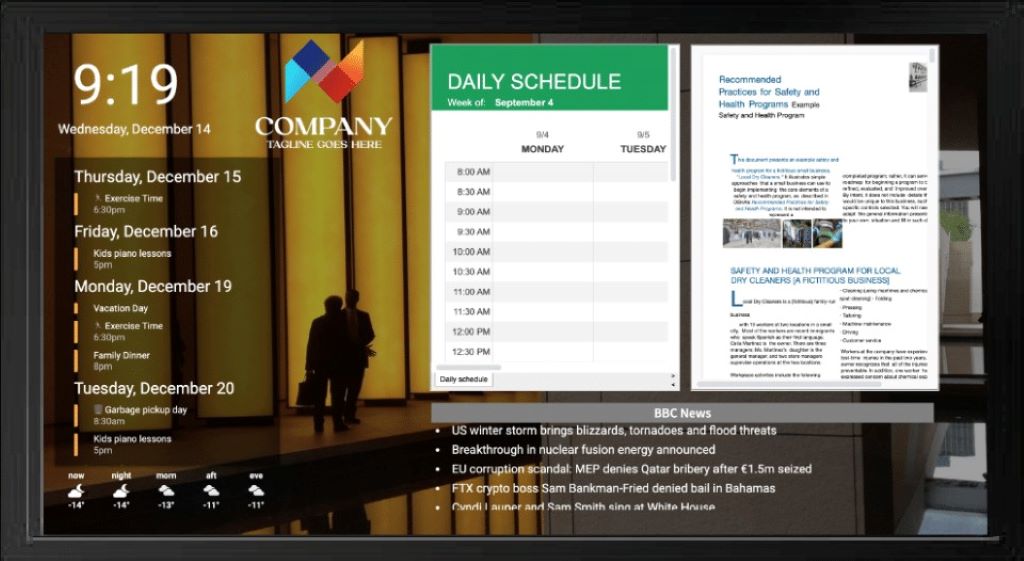
How to Set Up Your Large Screen Digital Calendar for Maximum Efficiency
Setting up your large screen digital calendar properly is key to getting the most out of it. Follow these steps to optimize your setup and workflow:
1. Choose the Right Location
The location of your digital calendar can impact its effectiveness. Place it in a high-traffic area where you and others will see it frequently. For personal use, this might be your home office or kitchen. For shared use, consider a central location like a conference room or family command center.
Additionally, ensure the calendar is mounted or placed at eye level. This reduces the need to crane your neck or strain your eyes to see the screen. If you’re mounting the calendar on a wall, use a sturdy bracket or stand that allows you to adjust the angle and height.
2. Sync with Your Existing Calendars
To avoid duplication and ensure all your events are in one place, sync your large screen digital calendar with your existing calendars. Most digital calendars support integration with platforms like Google Calendar, Microsoft Outlook, or Apple Calendar. This allows you to consolidate all your events and reminders in one central location.
Additionally, consider syncing with other tools you use, such as task managers, project management apps, or communication platforms. This integration ensures that your calendar reflects all your commitments and deadlines, reducing the risk of double-booking or missing important tasks.
3. Customize Your Views and Layouts
Take the time to customize your calendar’s views and layouts to match your workflow. For example, you might use the daily view for detailed planning and the weekly view for a big-picture overview. Experiment with different layouts to find what works best for you.
Additionally, consider creating custom views for specific purposes. For example, you might create a work view that shows only your professional commitments and a personal view that highlights your family or leisure activities. This customization makes it easier to focus on what’s relevant at any given time.
4. Set Up Color-Coding and Categories
Color-coding and categories are powerful tools for organizing your schedule. Assign colors to different types of events, such as work, personal, or family commitments. This visual distinction makes it easier to scan your calendar and prioritize your tasks.
Additionally, use categories or tags to group related events. For example, you might create a category for meetings, another for deadlines, and another for recurring tasks. This helps you quickly identify what’s on your plate and ensures nothing falls through the cracks.
5. Configure Reminders and Notifications
Reminders and notifications are essential for staying on top of your schedule. Set up customizable alerts for your events and deadlines. For example, you might set a reminder 10 minutes before a meeting or a day in advance for an important deadline.
Additionally, consider using recurring reminders for tasks that need to be completed regularly. This ensures you never forget to follow up on important commitments. Some calendars also support location-based reminders, which can be useful for tasks tied to specific locations.
Tips for Using Your Large Screen Digital Calendar Effectively
A large screen digital calendar is a powerful tool, but it’s only as effective as how you use it. Here are some tips to help you get the most out of your calendar:
1. Time Blocking
Time blocking is a productivity technique where you allocate specific blocks of time for different tasks or activities. Use your digital calendar to divide your day into focused segments, such as work, meetings, and personal time. This helps you stay on track and ensures you’re dedicating enough time to each priority.
Additionally, color-code your time blocks to make them easier to identify. For example, you might use blue for work-related tasks, green for personal activities, and red for urgent deadlines. This visual distinction makes it easier to see how your time is allocated at a glance.
2. Prioritize Your Tasks
Not all tasks are created equal. Use your digital calendar to prioritize your to-do list by assigning levels of importance or urgency. For example, you might use a star or flag system to highlight high-priority tasks. This helps you focus on what’s most important and ensures you’re not wasting time on low-value activities.
Additionally, consider using the Eisenhower Matrix to categorize your tasks into four quadrants: urgent and important, important but not urgent, urgent but not important, and neither urgent nor important. This framework can help you decide what to tackle first and what to delegate or eliminate.
3. Use Recurring Events
Recurring events are a great way to automate your schedule and save time. Use your digital calendar to set up recurring events for tasks that happen regularly, such as weekly team meetings, monthly bill payments, or annual birthdays. This ensures you never forget important commitments and reduces the need for manual input.
Additionally, consider using recurring reminders for tasks that need to be completed on a regular basis. For example, you might set a reminder to review your goals every Friday or to back up your files every month.
4. Share with Your Team or Family
A large screen digital calendar is a great tool for collaboration. Share your calendar with your team or family members to keep everyone aligned and informed. This reduces the need for constant check-ins and ensures everyone is on the same page.
Additionally, use the calendar to assign tasks or events to specific people. For example, you might assign a meeting to a team member or a chore to a family member. This delegation ensures accountability and helps distribute the workload evenly.
5. Review and Reflect Regularly
A digital calendar is not just for planning—it’s also a tool for reflection. Set aside time each week to review your calendar and assess your productivity. Look for patterns, such as tasks that consistently take longer than expected or meetings that could be shortened.
Additionally, use your calendar to track your progress toward goals. For example, you might block out time each week to work on a specific project or set milestones for long-term objectives. This helps you stay motivated and ensures you’re making progress toward what matters most.
Common Mistakes to Avoid When Using a Large Screen Digital Calendar
Even with the best intentions, it’s easy to make mistakes when using a large screen digital calendar. Here are some common pitfalls to avoid:
1. Overloading Your Calendar
One of the biggest mistakes people make is overloading their calendar with too many tasks and events. This can lead to overwhelm and make it difficult to focus on what’s truly important. Instead, prioritize your commitments and leave buffer time between tasks to account for unexpected delays or interruptions.
Additionally, avoid the temptation to fill every minute of your day. Leave some open space in your calendar for spontaneity, creativity, or simply taking a break.
2. Ignoring the Big Picture
While it’s important to focus on the details, don’t lose sight of the big picture. A large screen digital calendar allows you to see your schedule at a glance, so use this to your advantage. Regularly review your calendar to ensure you’re allocating your time effectively and working toward your long-term goals.
Additionally, consider using the monthly view to track deadlines, milestones, and other important dates. This helps you stay proactive and avoid last-minute rushes.
3. Not Syncing with Other Tools
A digital calendar is most effective when it’s integrated with the other tools you use. Failing to sync your calendar with your email, task manager, or project management app can lead to duplication, conflicts, or missed commitments. Take the time to set up integrations and ensure all your tools are working together seamlessly.
Additionally, consider using a unified platform that combines calendar, email, and task management features. This can simplify your workflow and reduce the need to switch between multiple apps.
4. Skipping Reminders and Notifications
Reminders and notifications are essential for staying on top of your schedule. Skipping these alerts can lead to missed deadlines, forgotten meetings, or overlooked tasks. Take the time to set up customizable reminders for your events and deadlines.
Additionally, consider using different types of reminders for different purposes. For example, you might use a pop-up notification for meetings and an email reminder for deadlines. This ensures you never miss an important commitment.
5. Neglecting to Update Regularly
A digital calendar is only as good as the information it contains. Neglecting to update your calendar regularly can lead to inaccuracies, conflicts, or missed opportunities. Make it a habit to review and update your calendar at the end of each day or week.
Additionally, encourage your team or family members to update the calendar as well. This ensures everyone has access to the most up-to-date information and reduces the risk of miscommunication.
The Future of Large Screen Digital Calendars: Trends to Watch
Large screen digital calendars are evolving rapidly, with new technologies and features emerging all the time. Here are some trends to watch in the coming years:
1. Smart Integration with AI
Artificial intelligence is poised to revolutionize how we use digital calendars. Expect to see more calendars with AI-powered features, such as smart scheduling, automated reminders, and predictive analytics. For example, an AI-powered calendar might suggest optimal meeting times based on your availability and preferences or automatically reschedule conflicts.
Additionally, AI can help you prioritize your tasks by analyzing your workload and deadlines. This can ensure you’re focusing on what’s most important and making the most of your time.
2. Voice Control and Virtual Assistants
Voice control is becoming increasingly common in digital tools, and large screen digital calendars are no exception. Expect to see more calendars with voice control capabilities, allowing you to add events, set reminders, or check your schedule using simple voice commands.
Additionally, integration with virtual assistants like Amazon Alexa, Google Assistant, or Apple Siri can make it even easier to manage your calendar hands-free. For example, you might ask your virtual assistant to add a meeting to your calendar or remind you of an upcoming deadline.
3. Enhanced Collaboration Features
As remote work and hybrid teams become more common, collaboration features are becoming increasingly important. Expect to see more large screen digital calendars with enhanced collaboration tools, such as real-time editing, task assignment, and team notifications.
Additionally, some calendars may integrate with video conferencing platforms, allowing you to join meetings directly from your calendar. This can streamline your workflow and reduce the need to switch between multiple apps.
4. Augmented Reality (AR) and Virtual Reality (VR)
Augmented reality and virtual reality are emerging technologies that could transform how we interact with digital calendars. For example, an AR-powered calendar might overlay your schedule onto your physical environment, allowing you to see your events in context. A VR calendar could provide an immersive planning experience, allowing you to visualize your schedule in 3D.
While these technologies are still in their early stages, they have the potential to revolutionize how we manage our time and tasks.
5. Sustainability and Eco-Friendly Designs
As environmental concerns grow, more manufacturers are turning to sustainable and eco-friendly materials for their digital calendars. Expect to see more options made from recycled or biodegradable materials, as well as energy-efficient designs that reduce power consumption.
Additionally, some companies are focusing on reducing the carbon footprint of their products by using renewable energy sources and minimizing packaging waste. This trend is likely to continue as consumers demand more environmentally responsible products.
Conclusion
A large screen digital calendar is a powerful tool for boosting productivity, reducing stress, and staying organized. By choosing the right model, setting it up effectively, and using it strategically, you can transform how you manage your time and tasks. Whether you’re a busy professional, a student, or a family juggling multiple schedules, a digital calendar can help you stay on track and achieve your goals.
Remember, the best digital calendar is the one that fits your specific needs and workflow. Take your time, explore the features, and don’t be afraid to experiment with different setups and techniques. With the right approach, your large screen digital calendar can become the centerpiece of your productivity system.
Have you tried using a large screen digital calendar? Share your tips, tricks, or favorite features in the comments below! If you found this article helpful, don’t forget to share it with your friends and colleagues. Here’s to a more organized, productive, and stress-free life!
FAQs
What is a large screen digital calendar?
A large screen digital calendar is a device or application that displays your schedule on a big, high-resolution screen. It allows you to view and manage your events, tasks, and reminders in a visually clear and accessible format.
How do I sync my large screen digital calendar with other tools?
Most large screen digital calendars support integration with popular platforms like Google Calendar, Microsoft Outlook, or Apple Calendar. Check the calendar’s settings or user manual for instructions on how to sync with your existing tools.
Can I use a large screen digital calendar for team collaboration?
Yes, many large screen digital calendars support sharing and collaboration features. You can share your calendar with team members or family members, assign tasks, and keep everyone aligned and informed.
What are the benefits of using a large screen digital calendar?
A large screen digital calendar boosts productivity by providing visibility, organization, and collaboration. It helps you stay on track, reduce mental load, and manage your time more effectively.
How do I choose the right large screen digital calendar for my needs?
Consider factors like display size, resolution, touchscreen capability, customizable views, integration with other tools, and color-coding options. Think about your specific needs, such as personal use, team collaboration, or family organization.