
Wrist pain from prolonged computer use is a silent productivity killer. I still remember the sharp, shooting pain that would radiate from my wrist to my forearm after long hours at my desk. It started as a mild discomfort but soon turned into a constant ache that made even simple tasks like clicking or scrolling agonizing. That’s when I realized my standard mouse was the culprit. Switching to an ergonomic mouse not only alleviated my pain but also transformed how I worked. The difference was night and day—no more stiffness, no more fatigue, just smooth, comfortable use.
If you’re experiencing similar discomfort, you’re not alone. According to the Bureau of Labor Statistics, repetitive strain injuries like carpal tunnel syndrome account for over 30% of all workplace injuries. An ergonomic mouse is designed to reduce strain by promoting a natural hand and wrist position. If you’re unsure where to start, a reliable ergonomic mouse guide can help you find the perfect fit for your needs and budget.
Why an Ergonomic Mouse Is Essential for Wrist Pain Relief
An ergonomic mouse is specifically designed to minimize strain on your hand, wrist, and forearm. Unlike traditional mice, which force your wrist into an unnatural, flat position, ergonomic mice encourage a more neutral posture. This reduces pressure on the median nerve, which runs through the carpal tunnel in your wrist—a common source of pain and discomfort for frequent computer users.
Additionally, ergonomic mice often feature a contoured shape that fits the natural curve of your hand. This design distributes pressure more evenly, preventing hotspots that can lead to fatigue or injury. According to a study published in the Journal of Occupational Rehabilitation, using an ergonomic mouse can reduce wrist pain by up to 40% in as little as four weeks. This makes them a worthwhile investment for anyone who spends long hours at a computer, whether for work, gaming, or creative projects.
For those already experiencing wrist pain, switching to an ergonomic mouse can provide immediate relief. However, even if you’re not currently in pain, using an ergonomic mouse can help prevent future issues. It’s a proactive step toward maintaining your hand and wrist health, especially if you spend more than a few hours a day using a computer.
Key Features to Look for in an Ergonomic Mouse
Not all ergonomic mice are created equal. To find the best one for your needs, it’s important to understand the key features that contribute to comfort and pain reduction. Here’s what to prioritize:
1. Vertical or Neutral Grip Design
A vertical mouse is one of the most effective designs for reducing wrist strain. Unlike traditional mice, which require you to twist your forearm into a pronated position (palm facing down), vertical mice allow you to keep your hand in a neutral, handshake-like position. This alignment reduces the torque on your forearm muscles and tendons, significantly lowering the risk of developing repetitive strain injuries.
If a vertical mouse feels too drastic, consider a neutral grip mouse. These models still encourage a more natural hand position but with a less extreme angle. They’re a good middle ground for those transitioning from a traditional mouse.
2. Contoured Shape
An ergonomic mouse should have a contoured shape that fits the natural curve of your hand. This design helps distribute pressure evenly across your palm and fingers, reducing the risk of developing pressure points. Look for a mouse with a thumb rest and a shape that supports the arch of your hand.
Additionally, the size of the mouse matters. A mouse that’s too small or too large can cause your hand to cramp or stretch unnaturally. Ideally, your fingers should rest comfortably on the buttons without requiring excessive force to click.
3. Adjustable DPI (Dots Per Inch)
DPI refers to the sensitivity of the mouse. A higher DPI means the cursor moves faster with less physical movement, while a lower DPI requires more movement to cover the same distance. An adjustable DPI allows you to customize the mouse’s sensitivity to match your workflow and comfort level.
For precision tasks like graphic design or photo editing, a higher DPI can reduce the need for large hand movements, minimizing strain. Conversely, a lower DPI can be better for general use, as it allows for more controlled, deliberate movements. Look for a mouse with multiple DPI settings that you can switch between easily.
4. Programmable Buttons
Programmable buttons can enhance productivity by allowing you to assign frequently used commands or macros to specific buttons. This reduces the need for repetitive clicking or keyboard shortcuts, which can contribute to wrist strain over time.
For example, you can program a button to perform a copy-paste command, open a frequently used application, or execute a complex macro. This customization can streamline your workflow and reduce the physical effort required to complete tasks.
5. Wired vs. Wireless
Both wired and wireless ergonomic mice have their advantages. Wired mice provide a consistent, lag-free connection, which is ideal for gaming or precision tasks. They also don’t require battery replacements or recharging. However, the cord can sometimes get in the way or limit your range of motion.
Wireless mice, on the other hand, offer greater freedom of movement and a cleaner workspace. Modern wireless mice use advanced Bluetooth or RF technology to provide a stable, responsive connection. If you opt for a wireless model, look for one with a long battery life or a rechargeable battery to avoid frequent replacements.
6. Weight and Balance
The weight and balance of the mouse can impact your comfort and control. A mouse that’s too heavy can cause fatigue over time, while one that’s too light may feel flimsy or difficult to control. Look for a mouse with a balanced weight distribution that feels comfortable in your hand.
Additionally, consider the materials used in the mouse’s construction. A mouse with a rubberized or textured grip can provide better traction and reduce the likelihood of your hand slipping or sliding, which can cause strain.
Types of Ergonomic Mice: Which One Is Right for You?
Ergonomic mice come in various shapes and designs, each suited to different needs and preferences. Here’s a breakdown of the most common types:
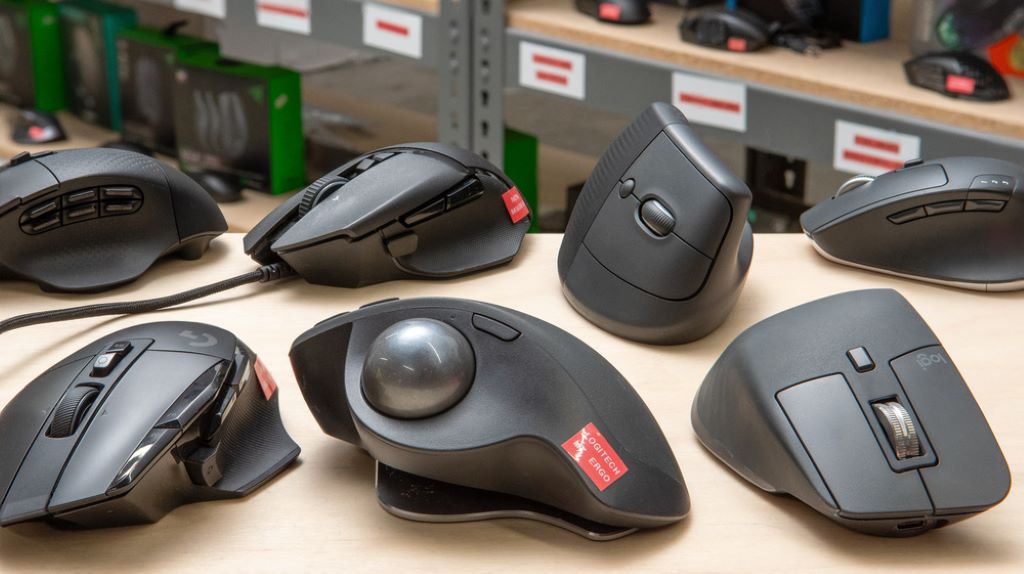
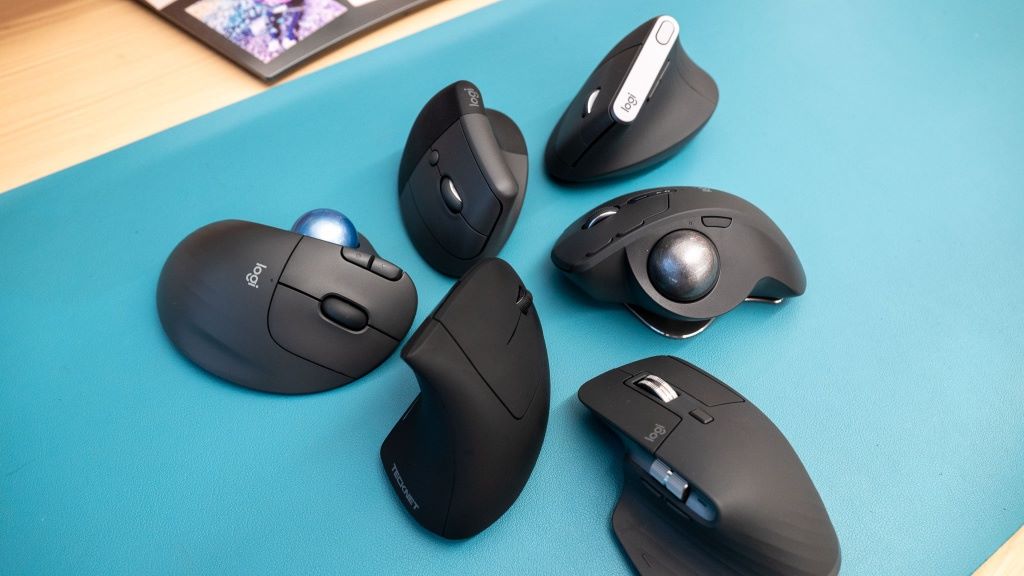
1. Vertical Mice
Vertical mice are designed to keep your hand in a neutral, handshake-like position. This reduces the pronation of your forearm, which is a common cause of wrist pain and repetitive strain injuries. Vertical mice are ideal for those who experience significant wrist discomfort with traditional mice.
However, vertical mice can take some getting used to, as they feel quite different from standard models. If you’re new to ergonomic mice, you may need a few days or weeks to adjust to the new grip and movement.
2. Trackball Mice
Trackball mice feature a stationary ball on top of the device that you control with your thumb or fingers. This design eliminates the need to move your arm, reducing strain on your wrist and forearm. Trackball mice are ideal for those with limited desk space or who prefer a more stationary workflow.
Additionally, trackball mice can be more precise than traditional mice, making them a popular choice for graphic designers, CAD users, and gamers. However, they may require a bit of practice to master, as the movement can feel less intuitive at first.
3. Joystick Mice
Joystick mice feature a small joystick or nub that you control with your thumb or fingers. This design allows for precise cursor control with minimal hand movement, reducing strain on your wrist and forearm. Joystick mice are often used in specialized applications, such as CAD software or gaming.
However, joystick mice can be less intuitive for general use, as they require a different set of movements compared to traditional mice. They may also be less comfortable for extended use, as the joystick can require more force to operate.
4. Touchpad Mice
Touchpad mice feature a touch-sensitive surface that you control with your fingers. This design eliminates the need for physical buttons, reducing the force required to click and scroll. Touchpad mice are ideal for those who prefer a more minimalist, low-profile design.
However, touchpad mice may not be as precise or responsive as traditional mice, especially for tasks that require fine control. They may also be less comfortable for extended use, as the lack of physical buttons can cause finger fatigue.
5. Compact or Travel Mice
Compact or travel mice are designed for portability and ease of use on the go. They’re often smaller and lighter than standard mice, making them easy to carry in a bag or pocket. However, their small size can make them less comfortable for extended use, as they may not provide adequate support for your hand and wrist.
If you opt for a compact mouse, look for one with a contoured shape and a comfortable grip to minimize strain. Additionally, consider a model with a retractable cord or wireless connectivity for added convenience.
How to Transition to an Ergonomic Mouse
Switching to an ergonomic mouse can feel strange at first, especially if you’ve been using a traditional mouse for years. However, with a little patience and practice, you can make the transition smoothly and start enjoying the benefits of reduced pain and improved comfort. Here’s how to get started:
1. Start Slowly
If you’re new to ergonomic mice, it’s a good idea to start slowly. Begin by using the new mouse for short periods, such as an hour or two a day, and gradually increase the time as you become more comfortable. This will give your hand and wrist time to adjust to the new grip and movement.
Additionally, consider using the ergonomic mouse alongside your traditional mouse at first. This can help you ease into the transition without feeling overwhelmed or frustrated.
2. Adjust Your Workspace
An ergonomic mouse is just one part of a comfortable workspace. To get the most out of your new mouse, make sure your entire workstation is set up ergonomically. This includes:
- Adjusting your chair so that your feet are flat on the floor and your knees are at a 90-degree angle.
- Positioning your monitor at eye level to reduce strain on your neck and shoulders.
- Using a desk that allows your elbows to rest at a 90-degree angle and your forearms to be parallel to the floor.
Additionally, consider using a wrist rest or mouse pad with a gel or memory foam surface to provide extra support and cushioning for your wrist.
3. Practice Proper Mouse Technique
Even with an ergonomic mouse, it’s important to practice proper technique to avoid strain and injury. Here are some tips to keep in mind:
- Keep your wrist straight and neutral, avoiding any bending or twisting.
- Use your entire arm to move the mouse, rather than just your wrist. This distributes the movement across larger muscle groups, reducing strain on your wrist and forearm.
- Avoid gripping the mouse too tightly. Use a light, relaxed grip to minimize tension in your hand and fingers.
- Take regular breaks to stretch your hand, wrist, and fingers.
Additionally, consider using mouse exercises or stretches to help you get used to the new grip and movement. This can improve your comfort and reduce the risk of injury.
4. Customize Your Mouse Settings
Many ergonomic mice come with customizable settings that allow you to adjust the DPI, button assignments, and other features to suit your needs. Take the time to explore these settings and find the configuration that works best for you.
For example, you may want to adjust the DPI to match your workflow or assign frequently used commands to programmable buttons. Some mice also allow you to create custom profiles for different applications or tasks.
5. Be Patient and Persistent
Transitioning to an ergonomic mouse can take time, and it’s normal to feel frustrated or uncomfortable at first. However, with patience and persistence, you’ll likely find that the benefits far outweigh the initial challenges. Give yourself time to adjust, and don’t be discouraged if it takes a few weeks to feel completely comfortable.
Additionally, keep in mind that the long-term benefits of using an ergonomic mouse—such as reduced strain, improved comfort, and a lower risk of injury—are well worth the effort.
Common Mistakes to Avoid When Choosing an Ergonomic Mouse
Even with the best intentions, it’s easy to make mistakes when selecting an ergonomic mouse. Here are some common pitfalls to avoid:
1. Choosing the Wrong Size
An ergonomic mouse that’s too small or too large can cause discomfort and strain. If the mouse is too small, your hand may cramp or stretch unnaturally. If it’s too large, you may have to reach or twist your wrist to use it. Look for a mouse that fits comfortably in your hand, with your fingers resting naturally on the buttons.
Additionally, consider the shape of the mouse. A contoured shape that fits the natural curve of your hand can provide better support and reduce the risk of developing pressure points.
2. Ignoring Your Grip Style
Different people have different grip styles when using a mouse. The three most common grip styles are:
- Palm grip: Your entire hand rests on the mouse, with your fingers spread out.
- Claw grip: Your fingers are curled, with the tips resting on the buttons.
- Fingertip grip: Only the tips of your fingers touch the mouse, with your palm hovering above it.
Choose an ergonomic mouse that matches your grip style. For example, a palm grip mouse should have a larger, more contoured shape, while a fingertip grip mouse should be smaller and lighter.
3. Overlooking DPI and Sensitivity
The DPI and sensitivity of the mouse can impact your comfort and control. A mouse with a DPI that’s too high or too low can cause you to overcompensate with your hand movements, leading to strain. Look for a mouse with adjustable DPI settings that allow you to customize the sensitivity to match your workflow.
Additionally, consider the type of sensor used in the mouse. Optical sensors are more precise and responsive than older ball-type sensors, making them a better choice for most users.
4. Skipping the Wrist Rest
A wrist rest can provide extra support and cushioning for your wrist, reducing strain and discomfort. However, it’s important to use the wrist rest correctly. Resting your wrist on the pad while moving the mouse can actually increase pressure on the carpal tunnel and contribute to pain.
Instead, use the wrist rest as a support during breaks or when you’re not actively using the mouse. This can help keep your wrist in a neutral position and reduce the risk of developing strain.
5. Not Testing Before Buying
An ergonomic mouse is a personal tool, and what works for one person may not work for another. If possible, test the mouse before buying to ensure it feels comfortable and natural in your hand. Many stores allow you to try out display models, or you can order from a retailer with a good return policy.
Additionally, read reviews from other users to get a sense of the mouse’s performance, comfort, and durability. Look for models with consistently positive feedback and high ratings.
Benefits of Using an Ergonomic Mouse
Using an ergonomic mouse offers a wide range of benefits, from reduced pain to improved productivity. Here are some of the most notable advantages:
1. Reduced Wrist and Hand Pain
One of the primary benefits of an ergonomic mouse is the reduction of wrist and hand pain. By promoting a more natural hand and wrist position, these mice help alleviate pressure on the median nerve and reduce the risk of developing repetitive strain injuries like carpal tunnel syndrome.
Additionally, ergonomic mice can help prevent other common issues like tendonitis, tenosynovitis, and thoracic outlet syndrome. These conditions are often caused by poor posture and repetitive motions, which an ergonomic mouse can help mitigate.
2. Improved Posture
An ergonomic mouse encourages better posture by aligning your hand, wrist, and arm in a more natural position. This can help prevent slouching and reduce strain on your shoulders, neck, and back. Over time, improved posture can lead to less fatigue and discomfort, as well as a reduced risk of developing chronic pain.
Additionally, many ergonomic mice are designed to be used with a neutral wrist position, which can help prevent wrist extension—a common cause of strain and injury.
3. Increased Productivity
By reducing pain and discomfort, an ergonomic mouse can help you work more efficiently and productively. When you’re not distracted by discomfort, you can focus better on your tasks and get more done in less time. Additionally, many ergonomic mice come with programmable buttons and customizable settings, which can streamline your workflow and improve your efficiency.
For example, assigning frequently used commands to programmable buttons can reduce the need for repetitive clicking or keyboard shortcuts. This can save you time and effort, allowing you to complete tasks more quickly and with less strain.
4. Enhanced Comfort
An ergonomic mouse is designed with comfort in mind. Features like contoured shapes, vertical grips, and cushioned wrist rests all work together to create a more comfortable user experience. This can make a significant difference, especially during long work sessions.
Additionally, many ergonomic mice are made from high-quality materials that feel good to the touch and reduce fatigue. For example, some mice feature soft-touch coatings or rubberized grips that provide a more comfortable and secure hold.
5. Versatility and Customization
Ergonomic mice often come with a range of customizable features that allow you to tailor the mouse to your specific needs. For example, you may be able to adjust the DPI, remap buttons, or create custom profiles for different applications or tasks. This versatility can help you find the perfect configuration for your workflow and preferences.
Additionally, many ergonomic mice are compatible with a wide range of devices and operating systems, making them a versatile choice for any workspace. Whether you’re using a desktop, laptop, or tablet, there’s an ergonomic mouse that can meet your needs.
The Future of Ergonomic Mice: Trends to Watch
Ergonomic mice are evolving rapidly, with new technologies and features emerging all the time. Here are some trends to watch in the coming years:
1. Advanced Ergonomic Designs
Manufacturers are continuously refining the design of ergonomic mice to better align with the natural posture of the hand and wrist. Expect to see more models with adjustable angles, modular components, and customizable grips. These advancements will allow users to fine-tune their mouse to match their unique needs and preferences.
Additionally, some companies are exploring the use of 3D printing to create fully customized ergonomic mice. This technology could allow users to design a mouse that perfectly fits their hand shape and grip style.
2. Wireless and Multi-Device Connectivity
Wireless connectivity is becoming increasingly common in ergonomic mice. These models offer greater freedom of movement and a cleaner workspace, as they eliminate the clutter of cords. Additionally, multi-device connectivity allows you to switch between devices with the touch of a button, making it easy to use the same mouse with your desktop, laptop, and tablet.
Expect to see more ergonomic mice with advanced wireless technology, such as Bluetooth 5.0 or RF dongles, which provide a stable, responsive connection with minimal latency.
3. Improved Battery Life
Battery life is a major concern for wireless ergonomic mice. Manufacturers are working to improve battery efficiency, allowing users to go longer between charges or battery replacements. Some models now offer battery lives of up to a year or more, reducing the hassle of frequent recharging.
Additionally, expect to see more ergonomic mice with rechargeable batteries and fast-charging capabilities. This can provide added convenience and cost savings over time.
4. Smart Features and Integration
Some ergonomic mice now come with smart features that enhance their functionality and convenience. For example, you may find models with built-in gesture controls, voice commands, or touch-sensitive surfaces. These features can streamline your workflow and reduce the need for repetitive motions.
Additionally, expect to see more integration with ergonomic software and apps. These tools can help you track your usage, monitor your posture, and receive reminders to take breaks or stretch.
5. Sustainable and Eco-Friendly Materials
As environmental concerns grow, more manufacturers are turning to sustainable and eco-friendly materials for their ergonomic mice. Expect to see more options made from recycled plastics, biodegradable materials, or other environmentally responsible components.
Additionally, some companies are focusing on reducing the carbon footprint of their products by using energy-efficient manufacturing processes and minimizing packaging waste. This trend is likely to continue as consumers demand more sustainable products.
Conclusion
An ergonomic mouse is a powerful tool for reducing wrist pain, improving comfort, and enhancing productivity. By choosing the right model, transitioning gradually, and practicing proper technique, you can enjoy the benefits of a more natural, strain-free workflow. Whether you’re a writer, designer, gamer, or office worker, an ergonomic mouse can transform the way you work and help you stay healthy and comfortable.
Remember, the best ergonomic mouse is the one that fits your specific needs and preferences. Take your time, do your research, and don’t be afraid to experiment with different features and designs. With the right mouse, you can say goodbye to wrist pain and hello to a more enjoyable and productive work experience.
Have you tried an ergonomic mouse? Share your experiences or recommendations in the comments below! If you found this article helpful, don’t forget to share it with your friends and colleagues. Here’s to pain-free, comfortable computing!
FAQs
What is an ergonomic mouse?
An ergonomic mouse is designed to reduce strain and promote a more natural hand and wrist position. It often features a vertical or neutral grip, contoured shape, and additional support to align with the natural posture of your hand and arm.
How do I choose the right ergonomic mouse for me?
Consider factors like grip style, size, DPI, programmable buttons, and wired vs. wireless options. Think about your specific needs, such as the type of tasks you’ll be doing and the amount of desk space you have available.
Are ergonomic mice only for people with wrist pain?
No, ergonomic mice are beneficial for anyone who uses a computer frequently, even if they don’t currently experience discomfort. They can help prevent strain and injury, improve posture, and increase productivity for all users.
How long does it take to adjust to an ergonomic mouse?
The adjustment period varies from person to person, but it typically takes a few days to a few weeks to get used to an ergonomic mouse. Starting slowly and practicing proper technique can help speed up the process.
Can I use an ergonomic mouse for gaming?
Yes, many ergonomic mice are suitable for gaming. Look for models with high DPI, programmable buttons, and a comfortable grip. Some ergonomic mice are specifically designed for gaming and offer features like RGB lighting and customizable profiles.