
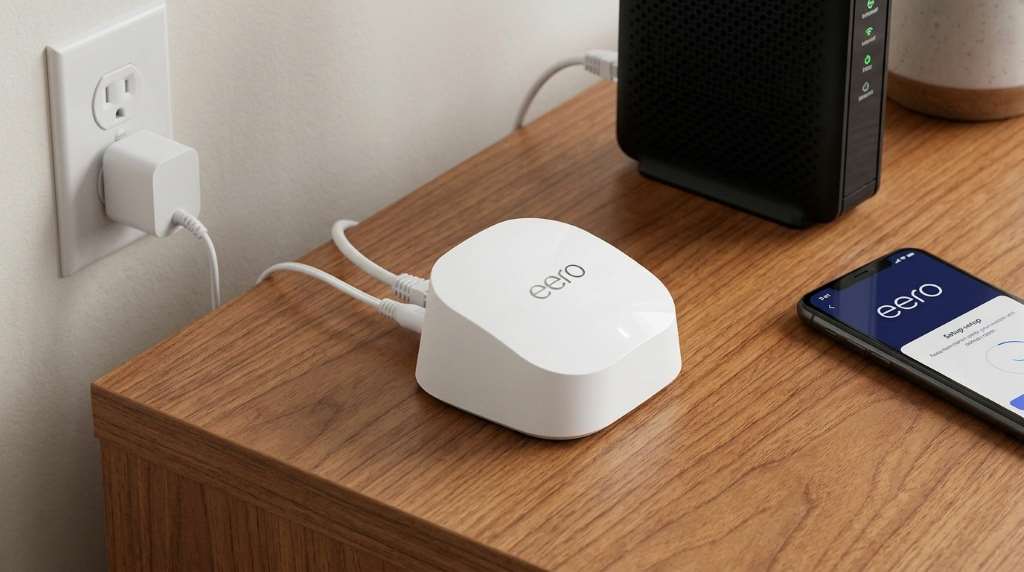
The Amazon Eero 6 Mesh Wi Fi creates one unified wireless network across multiple eero devices. It uses Wi-Fi 6, dual-band radios, and TrueMesh routing to move devices between nodes smoothly. Each eero 6 supports up to 75+ connected devices and covers up to 1,500 square feet.
Unlike a traditional extender, eero 6 uses multiple coordinated access points instead of separate networks. Therefore, your phone, laptop, television, and smart devices can stay connected while moving around your home.
What Is Amazon Eero 6 Mesh Wi Fi?
The Amazon Eero 6 Mesh Wi Fi is a Wi-Fi 6 mesh networking system designed for whole-home coverage. It combines one gateway router with additional eero units that extend the same wireless network.
The main eero connects directly to your modem or compatible gateway. Additional units communicate with the gateway and each other, creating multiple paths for network traffic throughout your home.
Consequently, you can place nodes near areas where your existing router struggles. This approach can reduce dead zones caused by distance, walls, floors, and other physical obstacles.

How Does Eero 6 Actually Work?
Eero 6 starts with a gateway unit connected to your modem through Ethernet. That gateway manages your internet connection and coordinates the rest of your mesh network.
Additional eero devices act as mesh access points throughout your home. They broadcast the same network name, so your devices do not need separate Wi-Fi credentials in different rooms.
As you move around, the eero system helps direct your device toward an appropriate access point. The process happens automatically without requiring you to manually switch networks.
Step 1: The Gateway Connects to Your Internet
First, connect the primary eero 6 to your modem using an Ethernet cable. The eero then receives internet traffic and distributes it across the local network.
If your internet provider supplied a modem-router combination, configuration can differ. In some setups, you may need bridge mode to avoid creating a double NAT situation.
Step 2: Additional Nodes Expand Coverage
Next, place additional eero units in areas that need stronger wireless coverage. Ideally, each unit should remain within reliable wireless range of another node.
Do not place a satellite inside the dead zone you want to fix. Instead, position it between the gateway and the weak area for better communication.
Step 3: TrueMesh Chooses Network Paths
Eero 6 uses TrueMesh technology to create multiple connections between compatible eero devices. This design gives traffic alternative paths when interference or congestion affects one route.
Therefore, the system does more than simply repeat the gateway’s signal. It evaluates available paths and routes traffic through suitable connections across the mesh.
What Makes Wi-Fi 6 Important?
Wi-Fi 6 represents a major improvement over older Wi-Fi generations for busy household networks. It uses technologies such as OFDMA and MU-MIMO to manage multiple connected devices more efficiently.
That matters when several people stream video, join meetings, browse websites, and use smart devices simultaneously. Instead of focusing only on peak speed, Wi-Fi 6 improves network efficiency under heavier loads.
Eero 6 uses dual-band 2.4GHz and 5GHz radios. The 2.4GHz band generally travels farther, while 5GHz can provide higher performance at shorter distances.
2.4GHz Versus 5GHz
- 2.4GHz: Better range and stronger penetration through many household obstacles.
- 5GHz: Higher potential performance with shorter effective range.
- Automatic selection: Eero manages band selection instead of requiring constant manual changes.
This automatic approach makes eero especially appealing to people who dislike complicated router menus. However, advanced users may prefer equipment that exposes more manual wireless controls.
How Does Eero 6 Handle Your Devices?
Eero creates one unified network rather than forcing separate names for different mesh nodes. Your devices can therefore connect throughout the home using the same network credentials.
The system also manages which access point should serve connected devices. That reduces the need to disconnect and reconnect when you walk between rooms.
However, the device itself influences roaming decisions as well. Some older phones, laptops, and smart-home products may hold onto weaker connections longer than expected.
How Fast Is Eero 6?
Eero 6 supports wireless speeds up to 500 Mbps according to its current product specifications. Wired connections can reach up to 1 Gbps through its Gigabit Ethernet ports.
Real-world performance will vary because wireless speed depends on distance, interference, client hardware, congestion, and building materials. Therefore, advertised maximum speeds should never equal your expected everyday speed.
Testing also shows that mesh satellites can introduce some performance loss compared with direct gateway connections. That behavior occurs because wireless backhaul traffic shares available radio capacity.
Why Wired Backhaul Can Improve Eero 6
Wireless backhaul lets mesh nodes communicate without Ethernet cables. However, a wired backhaul can provide a cleaner path between nodes when your home already has Ethernet wiring.
With compatible eero 6 router units, you can connect nodes through Ethernet. This approach can reduce wireless backhaul congestion and improve consistency for demanding devices.
Keep in mind that eero 6 extenders do not provide Ethernet ports. If wired backhaul matters, choose a configuration containing eero units with usable Ethernet connectivity.
Where Should You Place Eero 6 Units?
Placement often determines whether a mesh system performs well. Even powerful hardware struggles when you place nodes behind dense obstacles or too far apart.
Start by positioning the gateway near your modem and away from enclosed cabinets. Then place additional nodes in open locations with a strong connection to neighboring units.
- Keep nodes away from thick concrete walls whenever possible.
- Avoid placing nodes inside cabinets or behind large appliances.
- Place satellites between strong and weak coverage areas.
- Keep nodes elevated when practical for cleaner signal distribution.
- Use Ethernet backhaul when reliable cabling exists.
After installation, use the eero app to identify connection problems and evaluate network performance. If a satellite shows weak communication, move it closer to another eero unit.
Eero 6 Setup: What Happens During Installation?
Eero emphasizes app-based setup rather than traditional browser-based router configuration. You install the eero app, connect the gateway, and follow the guided setup process.
The app helps identify the gateway and add additional eero devices. You can also create your network name, password, guest network, and device profiles.
Because the system handles many technical decisions automatically, installation usually requires less networking knowledge. That simplicity represents one of eero’s strongest advantages over traditional routers.
What Smart Home Features Does Eero 6 Offer?
Eero 6 includes a built-in Zigbee Smart Home Hub in the gateway unit. This feature lets compatible smart-home products connect through supported Amazon smart-home integrations.
For example, compatible lights, locks, plugs, and other devices can communicate through the integrated hub. This reduces the need for separate hubs for certain supported products.
Eero 6 also supports Alexa-related features and Amazon’s connected-home functionality. However, compatibility varies by device, service, and software configuration.
Does Eero 6 Require a Subscription?
No, you can use the core eero 6 networking functionality without paying for a subscription. However, some advanced security, privacy, and parental-control features require eero’s paid service.
This distinction matters when comparing eero with competing mesh systems. Always check which features come standard before choosing a system for family management or network security.
Eero 6 Versus a Traditional Wi-Fi Extender
| Feature | Eero 6 Mesh | Traditional Extender |
|---|---|---|
| Network name | One unified network | Often uses separate network names |
| Coverage expansion | Multiple coordinated nodes | Repeats an existing signal |
| Roaming | Designed for seamless movement | Often less consistent |
| Management | Centralized mobile app | Varies by manufacturer |
| Traffic routing | TrueMesh path selection | Usually simpler repeating |
The biggest difference involves network coordination. A conventional extender primarily repeats an existing wireless signal, while eero builds a coordinated mesh.
Therefore, mesh networking can provide a more consistent experience across larger homes. Still, a single router remains sufficient when your existing coverage already meets your needs.
Common Eero 6 Problems and Practical Fixes
Slow Speeds Near a Satellite
First, check the satellite’s connection to the rest of the mesh. A poorly positioned node can distribute a weak connection throughout the nearby room.
Move the satellite closer to the gateway or another strong node. Then run another speed test from the same device and location.
Devices Keep Disconnecting
Start by checking whether the problem affects one device or the entire network. One affected device usually points toward client-specific compatibility or signal problems.
If several devices disconnect simultaneously, restart the gateway and inspect the modem connection. Also check for firmware updates through the eero app.
The Network Has a Weak Spot
Do not immediately add another node to solve every weak area. First, reposition the existing satellite to create a stronger mesh connection.
Adding too many nodes can also create unnecessary wireless competition. A smaller, properly positioned mesh can outperform a crowded network.
Internet Works Poorly After Installation
Check whether your modem and eero both perform routing functions. Two routers performing NAT simultaneously can create double NAT and cause certain applications problems.
For advanced installations, bridge mode can simplify network architecture. However, follow your ISP and eero configuration requirements before changing routing settings.
Who Should Consider Eero 6?
Eero 6 suits households that prioritize simple management, broad coverage, and dependable everyday connectivity. It works particularly well for homes with numerous phones, televisions, computers, and smart devices.
It also makes sense for users who prefer app-based networking instead of extensive manual configuration. Families can benefit from centralized device visibility and straightforward network management.
Who Should Choose Something Else?
Eero 6 may not suit users with multi-gigabit internet plans or demanding wired networking requirements. Its Gigabit Ethernet ports limit the maximum wired throughput available to compatible devices.
It also lacks the 6GHz band found on Wi-Fi 6E systems. Likewise, advanced users may want more detailed controls for channels, traffic prioritization, VLANs, and other network settings.
If you want faster gigabit-class performance, compare the eero 6 with newer eero models. The eero 6+ adds 160MHz channel support and targets higher-speed internet plans.
Is Eero 6 Still Worth Considering?
Eero 6 remains useful when coverage and simplicity matter more than cutting-edge wireless performance. Its Wi-Fi 6 foundation, mesh architecture, and smart-home integration make it practical for many ordinary homes.
However, buyers should evaluate their internet speed, home size, Ethernet wiring, and device count first. That approach prevents paying for features you will never use or overlooking limitations that matter later.
How to Get Better Eero 6 Performance
- Place the gateway in an open central location.
- Keep satellites within strong wireless range.
- Use Ethernet backhaul when practical.
- Keep firmware updated through the eero app.
- Reduce interference from crowded wireless equipment.
- Test speeds from several rooms instead of one location.
- Remove unnecessary mesh nodes if they provide little benefit.
- Check modem and router settings for double NAT issues.
Most performance improvements come from better placement rather than complicated configuration. Consequently, test placement before purchasing additional hardware.
Frequently Asked Questions
Does Eero 6 replace my router?
Yes, the primary eero 6 can function as your router when connected directly to a modem.
Can Eero 6 work with older Wi-Fi devices?
Yes, eero 6 supports older Wi-Fi standards, although older devices cannot use every Wi-Fi 6 benefit.
How many Eero 6 units do I need?
Choose one unit for adequate existing coverage, then add nodes only where genuine coverage problems remain.
Can Eero 6 use Ethernet backhaul?
Yes, compatible eero 6 router units can use Ethernet connections for wired mesh backhaul.
Is Eero 6 good for gaming?
Yes, eero 6 works well for casual gaming, although Ethernet provides better consistency for latency-sensitive competitive play.
Final Verdict
Amazon Eero 6 works by combining Wi-Fi 6 access points into one coordinated mesh network. Its TrueMesh technology helps route traffic between nodes, while automatic device management keeps the experience simple.
For many homes, the biggest advantage comes from consistent coverage rather than headline speed. Before buying, evaluate your internet plan, floor layout, Ethernet options, and need for advanced networking controls.
If those priorities match eero 6’s strengths, it can provide a straightforward way to replace troublesome dead zones. Start with careful node placement, test your coverage, and expand the system only when necessary.